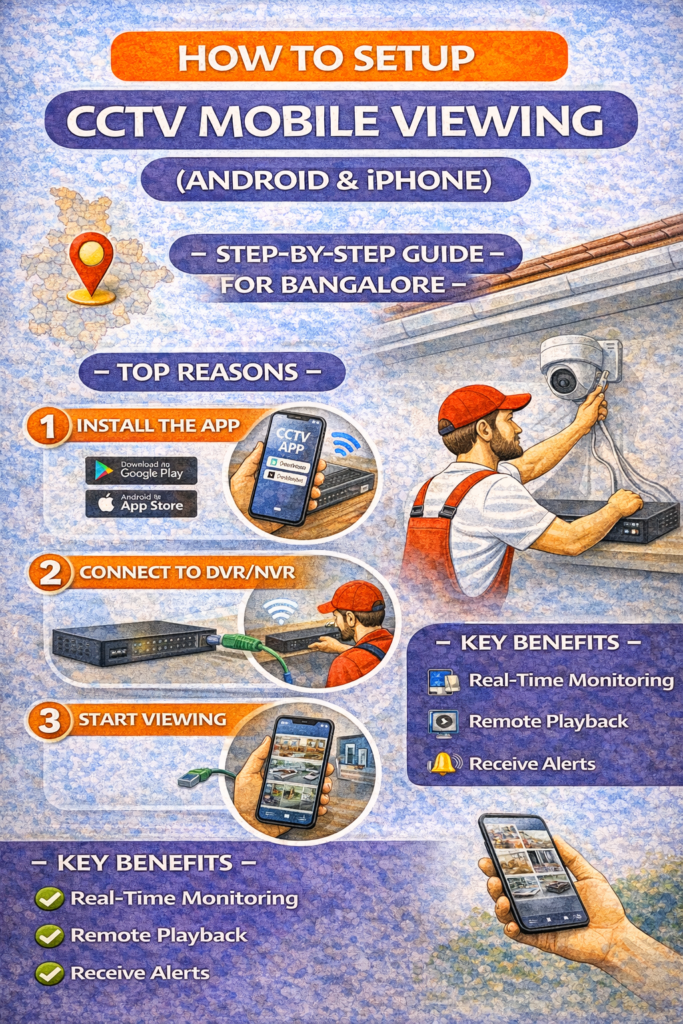
How to Setup CCTV Mobile Viewing (Android & iPhone) – Step-by-Step Guide for Bangalore
One of the biggest reasons people install CCTV cameras today is simple:
“I want to see my home or shop from my phone—anytime, anywhere.”
Whether you’re at work, traveling, or just in another room, CCTV mobile viewing turns your phone into a live security monitor. In 2026, almost all CCTV systems—DVR, NVR, and WiFi cameras—support mobile viewing. But setup confusion, app overload, and network issues often stop people from using this feature properly.
This guide explains exactly how to set up CCTV mobile viewing on Android and iPhone, step by step, with zero technical jargon.
What Is CCTV Mobile Viewing?
CCTV mobile viewing allows you to:
Watch live camera feed on your phone
View recorded footage anytime
Receive motion alerts
Monitor multiple locations from one app
Control cameras (PTZ models) remotely
This works using:
Internet connection
Mobile app
Secure device linking (P2P / Cloud / IP)
Types of CCTV Systems That Support Mobile Viewing
Before setup, identify your system type:
1. DVR-Based CCTV System
Uses wired cameras
DVR connected to internet router
Mobile viewing via DVR app
2. NVR-Based CCTV System
Uses IP cameras
NVR connected to network
Advanced mobile apps + AI features
3. WiFi / Smart CCTV Cameras
Individual cameras
Direct app-based setup
Cloud or SD card storage
👉 Setup steps vary slightly—but core logic remains the same.
What You Need Before Starting (Checklist)
Make sure you have:
☑ CCTV system installed and powered ON ☑ DVR/NVR connected to internet (LAN cable) ☑ Stable broadband or fiber connection ☑ Smartphone (Android or iPhone) ☑ App name (from DVR/NVR brand or camera manual) ☑ Device username & password
This preparation avoids 90% of setup failures.
Step-by-Step: CCTV Mobile Viewing Setup (Universal Method)
STEP 1: Connect CCTV System to Internet
For DVR/NVR systems:
Connect LAN cable from DVR/NVR to WiFi router
Ensure router internet is active
For WiFi cameras:
Camera must be within WiFi range
Use 2.4GHz WiFi (recommended)
Avoid guest networks
✅ Check:
Internet light blinking on router
Network status “Online” in DVR/NVR menu
STEP 2: Find the Correct Mobile App
Most brands use dedicated apps.
Common examples:
DVR/NVR systems → Brand-specific app
WiFi cameras → Manufacturer app
Smart home cameras → Cloud-based app
📌 Tip: Always download apps only from Play Store or App Store. Avoid third-party APKs.
STEP 3: Create an App Account (If Required)
Many modern apps require:
Email or mobile number
Password creation
OTP verification
Why?
Enables cloud access
Secures remote viewing
Allows multi-device login
👉 Use a strong password (avoid “admin123”).
STEP 4: Add CCTV Device to the App
This is the core step.
You can add a device using:
Option A: QR Code Scan (Most Common)
Open app → Add Device
Scan QR code from:
DVR/NVR label
Camera body
Device menu
Option B: Device ID / Serial Number
Enter manually if QR scan fails
Option C: Local Network Search
Phone must be on same WiFi as CCTV
App auto-detects device
STEP 5: Enter Device Login Credentials
This is not your app login.
You’ll need:
DVR/NVR username (usually admin)
Device password (set during installation)
⚠️ Common mistake: Using app password instead of device password.
STEP 6: Complete Linking & Sync
Once added:
Device status should show Online
Cameras load in live view
Names can be customized (Gate, Hall, Shop, etc.)
🎉 Mobile viewing is now active.
How to Watch Live CCTV Footage on Mobile
In the app:
Open device
Select camera
Choose:
Live view
Multi-camera grid
Full-screen mode
You can:
Zoom digitally
Switch quality (HD/SD)
Rotate view (supported cameras)
How to Playback Recorded CCTV Footage on Phone
Steps:
Open app → Playback
Select date & time
Choose camera
Play, pause, rewind, download
📌 Note: Playback may be slower on mobile networks—use WiFi when possible.
How to Enable Motion Alerts on Mobile
Motion alerts are useful—but can be annoying if misconfigured.
Enable Motion Detection
App → Device Settings
Motion Detection → ON
Adjust Sensitivity
Medium for homes
Low for outdoor areas (to avoid false alerts)
Set Alert Schedule
Night-only alerts recommended
Avoid 24/7 alerts for indoor cameras
Android vs iPhone – Any Difference?
Android
✅ Faster local detection ✅ More background flexibility ❌ Aggressive battery optimization can block alerts
Fix:
Disable battery optimization for CCTV app
iPhone
✅ Stable notifications ✅ Better app permission control ❌ Some features locked behind iOS permissions